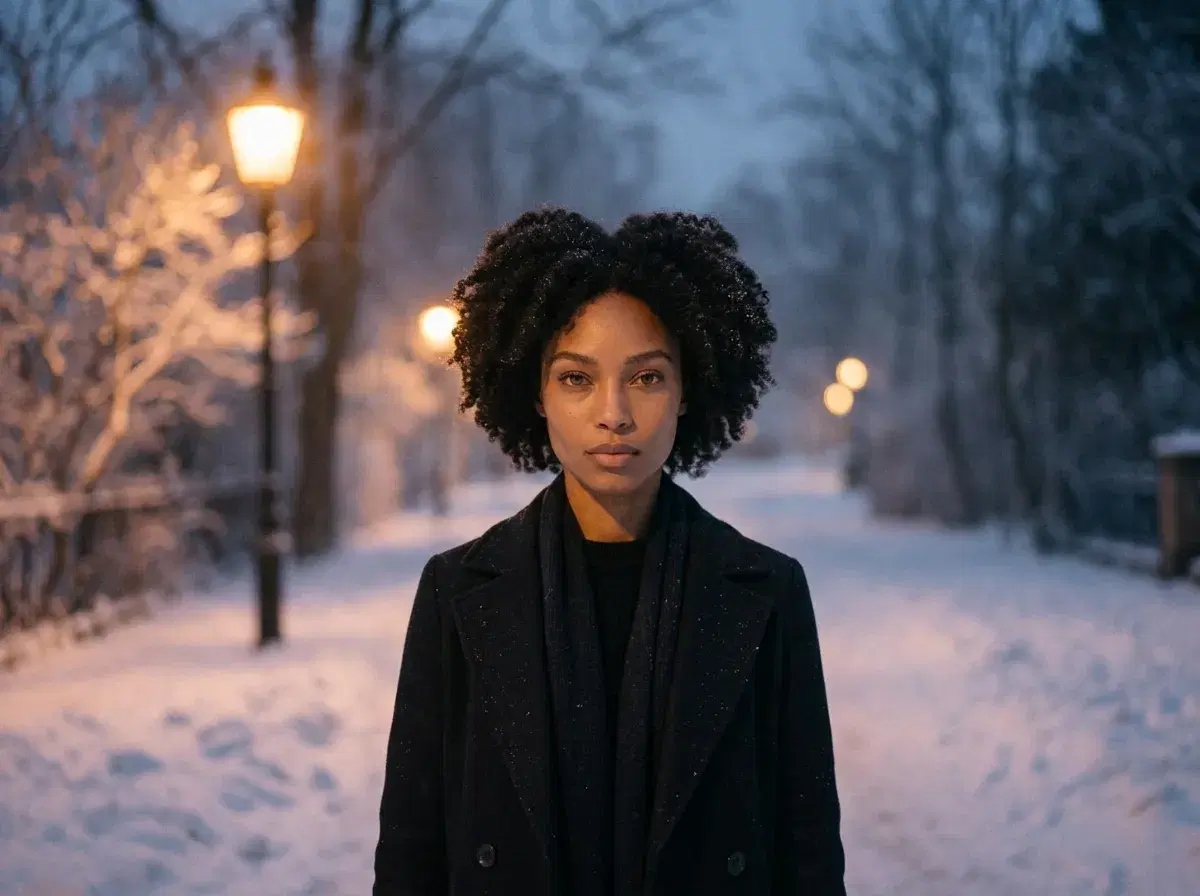
You can create winter photos with AI in minutes: upload a selfie, choose a winter style, generate. The result is a new portrait of you in snow, frost or candlelight.
This is a five-step guide with notes on snow, styles and credits.
Browse winter looks: AI winter photos.
TL;DR
- Step 1: upload one clear selfie.
- Step 2: choose a winter style.
- Step 3: generate.
- Refine with regenerations, then download.
What winter AI photo generation is
Winter AI photo generation creates a new image of you in a winter setting from one selfie. Pose does not paint snow onto a photo you already have; it generates a fresh portrait with your likeness locked.
Five steps
- 1UploadChoose one clear, well-lit selfie.
- 2Choose a stylePick a winter style in Pose, such as snowy street, fireside or frosted woods.
- 3GeneratePose renders the scene in seconds.
- 4RefineRegenerate any result that drifts from your likeness or has odd details.
- 5DownloadSave the files without watermarks.
Headshots: AI headshots.
Plans: Pose pricing.
Pose AI
Make a winter photo
One selfie, five steps.
1st week intro pricing discounted · Cancel anytime · Secure checkout
Frequently Asked Questions
Can I add snow to existing photos?
Pose generates a new portrait rather than editing an existing photo, but it has Quick Edits that change style or background on a Gallery image, so you can try adding a winter background there.
What winter styles does Pose offer?
Snowy streets, fireside, frosted woods, holiday and cosy looks. See the winter style page.
How many credits per winter photo?
Each generation draws from your 400 weekly credits; a per-image figure is not published.
Can Pose make a group photo?
Pose is reliable with one or two people in an image. For larger groups, generate separate portraits and combine them in your own editor.
How much does it cost?
$4.99 for the first week, then $14.99 a week with 400 credits. It is not unlimited, and there is no free tier.